

A Capture One session template is the difference between a 200-SKU day that lands by 17:00 and a 200-SKU day that bleeds into Tuesday. Not the camera, not the lighting - the template. It decides where every frame lands, what it's called, what colour profile it picks up, and how it leaves the session as a TIFF, a web JPG, a PDP rendition, and an archive copy without anyone clicking through the Process Recipe panel one frame at a time.
This piece is for photographers and studio leads who already shoot Capture One Pro tethered and want the operator-grade version of session setup - the structure that holds at five photographers across three rooms, not the structure that worked for one camera and one art director.
TL;DR
- A real session template covers four things: folder layout, capture naming tokens, output recipes, and tethering settings. Anything missed at template time becomes a rename script in week three.
- The default
Capture / Selects / Output / Trashfolders aren't just convention - they're load-bearing for retouch handoff, archiving, and re-shoots. - Drive file naming from tokens like
{Job Name},{Image Name}, and{Counter}. Renaming 1,400 files at the end of the day is the most expensive habit in a packshot studio. - Process Recipes do the export work for you: master TIFF, web JPG, PDP rendition, archive - fired in one click per session, not per frame.
- A
.cotemplatefile belongs on a shared, read-only network path with a version number in its name. Letting each photographer keep their own template is how a studio drifts apart in six months.
What a Capture One session template actually contains
When you save a session via File > Save as Template…, Capture One writes a .cotemplate file that bundles the folder structure, workspace, styles and presets, keyword libraries, Process Recipes, and camera-tool defaults. The actual images don't travel with it - the template is a shape, not a payload.
That shape needs to cover, at minimum:
- Folder layout - subfolders under the session root, and where the capture destination points.
- Next Capture Naming - the token string that names every frame as it lands.
- Next Capture Location - where new captures get written (session-relative or a network volume).
- Process Recipes - the export jobs you fire on every shoot, with their own naming, ICC profile, sharpening, and destination.
- Keyword library + metadata defaults - the IPTC fields stamped on capture (creator, copyright, usage terms).
- Tool tab arrangement and styles - so retouchers opening the session see the same workspace the photographer shot in.
If your template only carries folders, you've built about 20% of the value.
Folder layout: Capture, Selects, Output, Trash - and why it matters
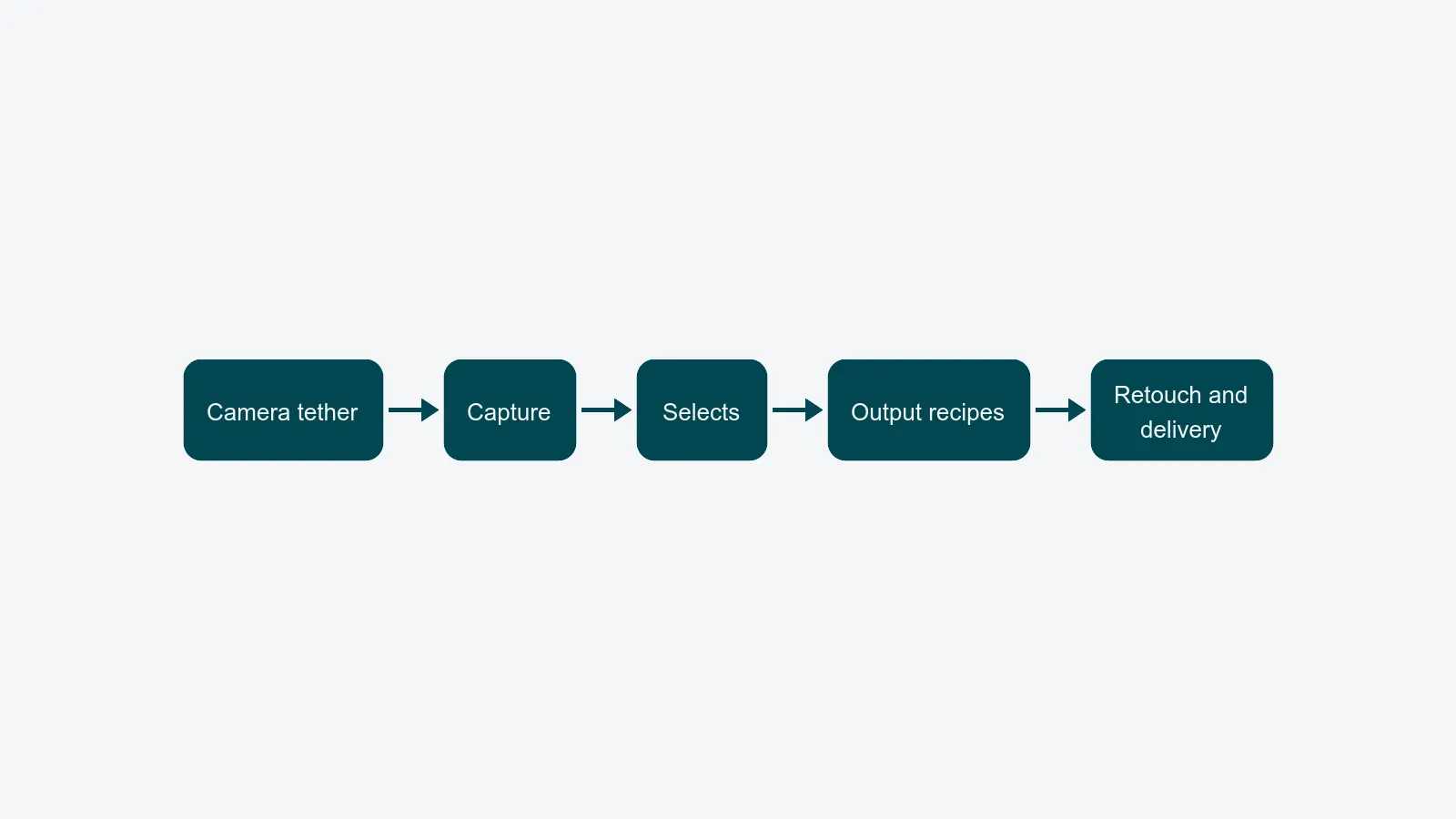
The four default folders look so plain it's tempting to ignore them. Don't. Each one is a contract.
- Capture - the only place new frames land. If a photographer redirects capture to a desktop folder "just for this shoot," every downstream tool breaks: retouch handoff, archiving, search.
- Selects - where keepers go after a first cull. In packshot, "select" means "this is the hero frame for this SKU's front angle." A retoucher opening
Selectsshould never have to hunt throughCapture. - Output - the exclusive home of processed exports. No source files, no WIP retouch - just deliverables, segmented by Process Recipe.
- Trash - soft-deleted frames that aren't gone yet. Keep it for the duration of the shoot day. Recovering an "accidentally rejected" SKU is one click; reshooting it the next morning is hours.
At 200 SKUs/day, those four folders carry roughly 1,200–2,000 files apiece. Discipline isn't optional.
Add a small number of session albums on top - typically Approved, Reshoot, and one per buyer or delivery channel. Albums are virtual, so they don't fight the folder structure. They let a stylist tag without moving files.
Naming tokens: solving renames before they happen
The naming convention is set in the Camera tool tab > Next Capture Naming (and mirrored in Output Naming inside each Process Recipe). Capture One inserts named tokens - {Job Name}, {Image Name}, {Counter}, {Date}, {Camera Serial}, {Recipe Name} - that resolve at write time.
A naming format that holds at packshot volume looks something like:
{Job Name}_{Image Name}_{Counter 4}
Resolving to: J-2026-118_SKU8842-FRONT_0003.iiq
The trick is that {Image Name} isn't the camera's filename - you set it before each look using the Next Capture Naming dialog. Most studios drive it from the shot list: the SKU plus the angle code (SKU8842-FRONT), then update it when the next product comes onto the cyclorama. That single field is what saves you from a batch rename at 18:00.
Three rules that don't bend:
- Job ID at the front of every filename. When 40,000 raw files share one volume, the job ID is the only sortable thing.
- No spaces, no diacritics, no slashes. "Spring/Summer 26" becomes
SS26. Diacritics break batch scripts and FTP delivery, even in 2026. - Counter token last, with padding.
{Counter 4}gives0001, not1. Sequencing breaks the moment you mix three- and four-digit numbers.
If the filename can be read by a retoucher, an asset manager, and your DAM ingest script without a lookup, you've built it right.
Process Recipes for the four jobs every packshot owes
Process Recipes live in the Output tool tab. Each recipe is a saved export profile - file format, bit depth, ICC profile, scaling, sharpening, output naming format, and root folder. Hit Process and the recipe runs against whatever's selected.
For a packshot session, you typically want four recipes baked into the template:
- Master TIFF - 16-bit, AdobeRGB or ProPhoto, no scaling, no sharpening. The handoff to retouch.
- Web JPG - 8-bit sRGB, long edge 2000 px, output sharpening for screen. Quick proofs the moment a frame is picked.
- PDP rendition - the exact spec your largest e-commerce channel wants (often 2400×2400 sRGB JPG at quality 80, padded square). Saves a re-export step at delivery.
- Archive copy - DNG or compressed TIFF written to a separate volume. The cold copy.
Each recipe carries {Recipe Name} as a token in its output path so files self-segregate: Output/master/, Output/web/, Output/pdp/, Output/archive/. Retouchers don't sift; they open the folder they want.
Recipes ship inside the .cotemplate file. That's the point. A photographer opening a new session for tomorrow's shoot inherits all four recipes, identical to last week, identical to the studio next door.
Capture Pilot, Live View, and the hot-folder question
Three runtime features sit on top of the template, and each has a specific job.
Live View is the in-app preview that mirrors the camera's sensor before you fire - useful for composition on a tripod-mounted body and for re-checking that the cyclorama hasn't shifted between SKUs. Toggle it from the Capture tool tab. It costs frames-per-second on the tether, so most packshot studios keep it off and turn it on between looks.
Capture Pilot is the separate review channel. Enable it from Window > Capture Pilot (the menu name has shifted across recent versions; the panel is the canonical place). It serves images out of the session over the local network to the Capture Pilot iOS/iPadOS app or any modern browser. The buyer sitting next to the cyclorama gets a tablet with the latest frame, taps to approve, and a stylist three rooms over sees the same view. No screen-sharing, no exporting to email.
Hot Folder (File > Hot Folder Enabled) is the multi-photographer trick. Capture One Pro tethers one camera per machine, but a hot folder watches a network path and ingests anything dropped into it - Wi-Fi cards, FTP from a second body, output from a tethering bridge. In a multi-room studio, each capture station tethers locally and writes copies to a central hot folder, so a senior photographer running QA in a separate room sees every frame as it lands.
The mistake to avoid: pointing the hot folder at the same physical directory as another session's Capture folder. Both sessions race for the files, both miss frames, and you spend Monday morning reconciling what landed where. Each session gets its own watched path.
Where the .cotemplate file lives, and who owns it
This is where studios drift apart. Photographer A saves a template to her desktop. Photographer B copies it, tweaks the naming format, and saves his version next to it. Six weeks later you have four templates, none matching the retoucher's expectations, and the asset manager is renaming files by hand.
The fix is operational, not technical:
- One canonical
.cotemplatefile per shoot type (e-comm packshot, lookbook, on-model, still life). - It lives on a shared, read-only network path. The senior photographer or studio manager owns write access.
- The filename carries a version:
packshot-ecomm-v3.2.cotemplate. Bumps to the version go in a one-line changelog next to the file. - New shoots are opened via
File > New Session > Template > Choose…and pointed at the shared path. Never copied locally.
If you run a content operations platform on top of Capture One, the template question gets simpler - the photographer role walks through how PixelAdmin pre-stamps the session with the job ID, the SKU list, and the IPTC defaults before the photographer opens the Mac. The .cotemplate still exists, but the per-shoot variables aren't typed by hand.
What breaks at 200 SKUs/day if any of this is sloppy
The same five failures show up in every audit:
- Capture destination drifted to a local drive because someone "just wanted to test." Half the morning's frames sit on a MacBook nobody else can see. Fix: enforce the network destination in the template, and verify frame one lands where you expect.
- Naming tokens not updated between SKUs. Frames 0001–1400 all read
J-2026-118_SKU8842-FRONT_xxxx. Fix: build the SKU+angle update into the on-set checklist; better, drive{Image Name}from the shot list instead of typing it. - Process Recipes diverged. One photographer's web JPG is 1800 px, another's is 2000. The buyer notices in week three. Fix: recipes ship inside the read-only template; nobody edits per session.
- Hot folder collision between two sessions in two rooms. Fix: separate watched paths, with the room name in each path.
- Templates ageing without a changelog. Retouch expectations evolved, the template didn't. Fix: a versioned
.cotemplatewith a one-line note when the format changes.
None of those are skill problems. They're template-discipline problems, which is why a content operations layer above Capture One - the kind covered in the packshot workflow guide and the tethered capture workflow breakdown - pays off quickly. The capture software stays excellent at what it does. The platform handles what capture software was never built for: who owns the template, who can edit it, and which version shipped with which job.
A five-question check before your next shoot
Run these on your current template. If three or more land uncomfortably, it's leaking.
- Can a retoucher open any frame name from your last five jobs and tell which job, SKU, and angle it is - without a lookup?
- Does opening a fresh session from your
.cotemplategive you the four recipes you ship to clients, ready to fire? - Are
{Job Name}and{Image Name}populated before frame one of every shoot, or do you patch them at lunch? - Does the senior photographer running QA in another room see every capture, in order, in under five seconds?
- Is there exactly one canonical
.cotemplatefile in the studio, with a version number and a changelog?
The template is a small file. The cost of getting it wrong is everything downstream of the shutter.