
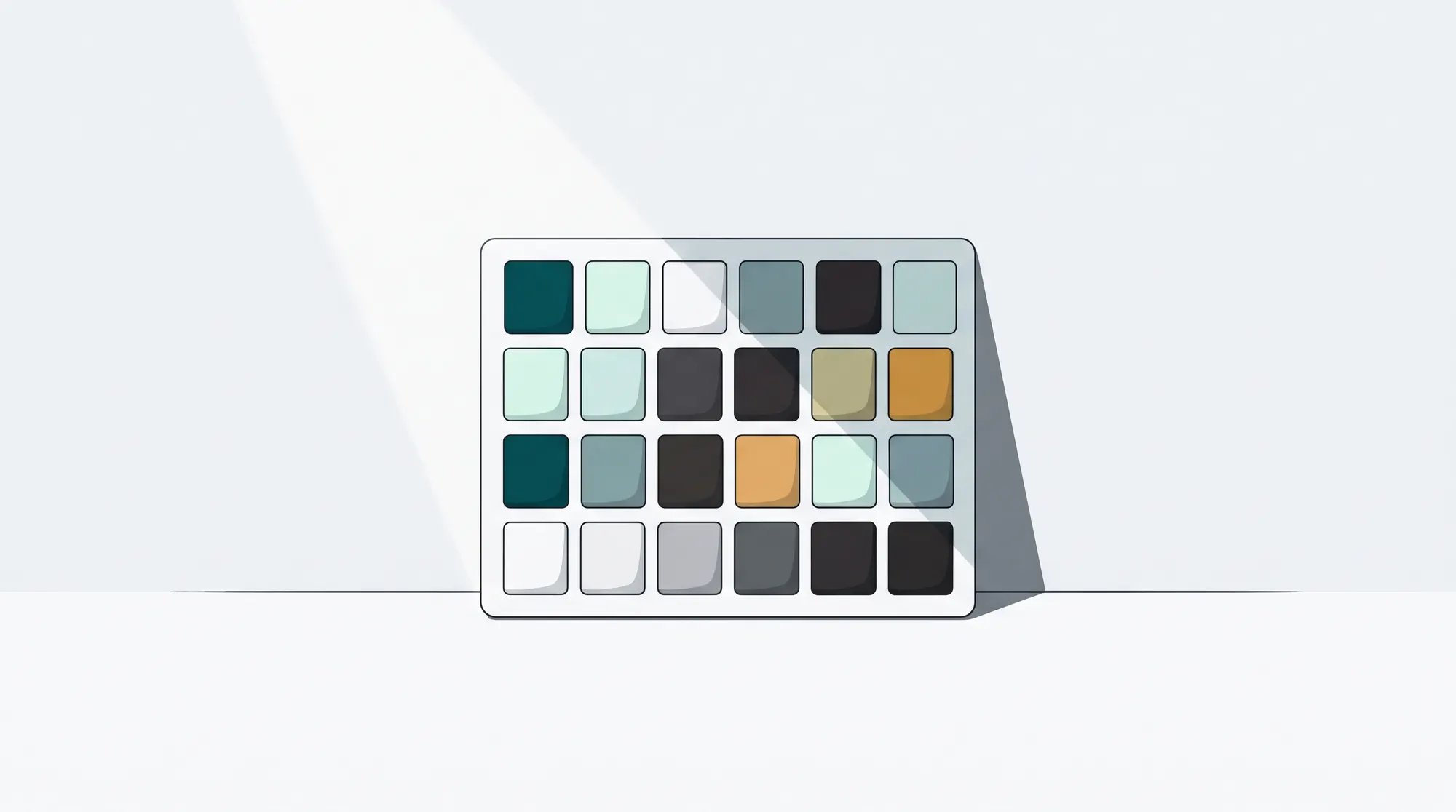
If you shoot daily packshot for e-commerce, the ColorChecker is the cheapest piece of gear in the room and the most often misused. A clean chart frame at the start of every setup means a retoucher can match a brand red on the first pass. A missing or dirty chart frame means a retouch round, a client email, or a reshoot.
This guide is the on-set workflow we walk photographers through: when to shoot the chart, how to build a profile in Capture One and Lightroom, how ICC and DCP differ in practice, and where the chart silently lies to you on metallics, near-blacks, and fluorescents.
TL;DR
- Shoot a fresh ColorChecker frame per setup, per light change, and per product family - not just once a day.
- Capture One uses ICC profiles applied at the raw stage; Lightroom and Camera Raw use DCP profiles. Each is built from the same chart, but the toolchain is different.
- The standard target for branded e-commerce color is average ΔE under 2.0 across the 24 patches, with no single critical patch above 3–4.
- Batch-sync white balance and the custom profile across the whole take from a single reference frame; flag exceptions explicitly rather than re-eyeballing.
- Metallics, near-blacks, fluorescents, and dark-saturated tones will fail the chart even when the chart is perfect. Plan for them.
What "good color" means before we touch the chart
For ecommerce packshot, "good color" is not photographic taste. It is whether the brand red on the storefront PDP matches the brand red in the brand book, on every device, every season. The chart is the link between what your camera saw and what the rest of the pipeline trusts.
A 24-patch Calibrite ColorChecker Classic (formerly X-Rite) gives you three jobs at once: a neutral white-balance reference, a known set of patches your software can profile against, and a visual sanity check during retouching. Treat it as all three, not just a WB tap.
When to shoot the ColorChecker frame
A single chart at the start of the day is not enough for daily packshot. The cadence we recommend:
- Per setup. Any time you reset the lights, change the angle, swap a modifier, or move the table. A new setup is a new color situation.
- Per light change. Strobes drift over a long shoot day. If a head was swapped, a tube was replaced, or you switched between strobe and continuous, shoot a new chart.
- Per product family. When you move from black hardware to white ceramics, or from cotton to wool, the meter response and the surround color shift enough to matter for the retoucher's eye, even if the lighting hasn't changed.
- At lunch and end of day. Cheap insurance. A two-second frame protects the morning's work if a strobe drifts after the break.
The chart goes first in each setup - fill the frame, square to the camera, in the same plane as the product. Use the gray patch on the chart to verify exposure: third row, fourth patch from the left should land near middle gray. Then pull the chart, replace it with the product, and shoot the take.
If you shoot tethered, name the chart frame so the retoucher can find it without digging. We use _CC_<setup-id> as the prefix; sorting by name puts the chart at the top of every folder. The patterns we use for naming and shoot-to-cloud are covered in the tethered capture workflow for high-volume e-commerce.
Capture One: the LCC + ICC route
Capture One profiles are ICC files applied in the Base Characteristics tool, before any other adjustment. The official Phase One workflow has two stages.
Stage 1 - Lens cast correction (LCC). Shoot a frame of an even, translucent white surface (an opal LCC plate, an unpopulated softbox face, or a calibrated diffuser) under the same light as your chart. Open it in Capture One, and in the Lens Correction tool create an LCC profile from that frame. Apply the LCC to the chart frame before profiling. This strips out any vignetting and lens-driven color cast so the profile only carries sensor and light response. Phase One documents this in the official LCC tool article.
Stage 2 - Build and apply the ICC. With LCC applied, set white balance using the picker on the second-lightest neutral patch (third row, second from the left), then export the chart frame as a 16-bit TIFF in a wide working space (ProPhoto or Adobe RGB). Build the ICC profile in Calibrite ccProfiler or X-Rite ColorChecker Camera Calibration, drop it into the system ColorSync / color folder, and select it in Base Characteristics → ICC Profile.
You now have a per-light, per-camera profile. Save it as a Capture One Style with the WB and ICC baked in, named after the setup.
Lightroom and Camera Raw: the DCP route
Lightroom and Camera Raw do not consume ICC camera profiles. They consume DCP (DNG Camera Profiles). Build them either with the Calibrite ccProfiler / X-Rite ColorChecker Camera Calibration tool, which writes DCP files directly, or with the Adobe DNG Profile Editor using the Chart wizard against a DNG of the chart.
The DCP lives in the user CameraRaw/CameraProfiles/ folder. In the Develop module, Profile → Browse picks it up. Apply white balance with the eyedropper on the same neutral patch, then sync WB and Profile across the take.
ccProfiler is the faster path for daily packshot - it is built for the chart, handles the patch detection automatically, and exports a profile that is ready to use. Use the DNG Profile Editor when you need a tone curve baked into the profile, or when you want to build a dual-illuminant profile from two chart shots (one tungsten, one daylight).
ICC vs DCP - what each actually does
The two profile types do similar work in different places in the pipeline.
- ICC profiles are the broader color-management standard, used by Capture One, monitor calibration tools, printers, and operating systems. In Capture One the ICC is applied at the raw demosaic stage to translate sensor RGB into the working space.
- DCP profiles are an Adobe-specific format used by Camera Raw, Lightroom, and any DNG-aware tool. The DCP carries the camera-to-XYZ transform and can also carry a tone curve and a hue/saturation table, which is why Adobe ships "Adobe Standard," "Camera Neutral," and the rest as DCPs.
For daily packshot, the practical difference is: in Capture One you apply an ICC and it controls demosaic-time color; in Lightroom you apply a DCP that does the same job. You cannot share the file between the two ecosystems. Build one of each if you genuinely use both - most studios commit to one. The downstream working-space choice (Adobe RGB or sRGB for delivery, ProPhoto for retouch) is then a separate decision and is covered in color-managed retouching pipelines.
Batch sync - the part that pays the chart back
A profile is worthless if it sits on one frame. The whole point of a per-setup chart is that you sync the WB and the profile across the take.
The pattern is the same in both apps:
- Open the chart frame for the setup.
- Apply LCC (Capture One) or pick the chart frame as the reference (Lightroom).
- Set WB with the eyedropper on the neutral patch.
- Apply the custom ICC / DCP for that light.
- Select all frames from that setup. Capture One: Adjustments Clipboard → copy WB and Base Characteristics → paste to selection. Lightroom: shift-select the chart as the source, Sync → check White Balance and Profile.
- Move to the next setup and repeat with that setup's chart.
Exceptions go in writing, not in your head. If a frame in the take genuinely needs a different WB - translucent samples, a dark backdrop bleeding into the surround - flag the file with a color label and a note on the job. The retoucher should never have to guess whether a deviation was intentional.
Delta-E targets and how to measure
ΔE (Delta-E) is the perceptual distance between a measured color and the reference. The targets we use for branded e-commerce packshot:
- Average ΔE across the 24 patches under 2.0 - the working definition of a profile that is fit for branded color. ΔE under 1.0 is generally not perceivable; 1–2 is acceptable for most reproduction work.
- No single critical patch above 3–4 - especially the brand-relevant ones (the patches closest to the brand's primary color). A great average with one patch sitting at ΔE 6 will still produce a wrong-looking brand red.
- Skin tones held tight when the catalog includes models - the light-skin and dark-skin patches in row 1 are your check.
Measure with ccProfiler's evaluation report, basICColor, or any chart-aware QC tool - pass the same TIFF you built the profile from back through the tool and read off the per-patch ΔE. If the average is over 2.0, rebuild the profile rather than retouching around it. If the average is well under 2.0 but the brand patch is high, that is a hue-rotation issue: build a dual-illuminant profile or move to a chart-plus-targeted-correction approach in retouch.
"Good enough" is real. For a basic-tier marketplace listing where the dominant viewer is on a phone in sRGB, ΔE 2–3 average will not be visible to anyone. For a brand book, the cosmetics PDP, or a product where the color is the product (paint, fabric, hardware finish), under 2.0 is the floor and you measure every batch.
Common pitfalls
- Dirty or scuffed chart. The patches age. A chart with fingerprints, dust, or a sun-faded edge will profile a small lie into every shoot. Replace the chart annually under heavy use; store it in its sleeve, in the dark.
- Glare on the chart. A specular highlight on the gray patches kills the WB pick and skews the profile. Tilt the chart slightly off the lighting axis or feather the key.
- Wrong illuminant assumed. A daylight DCP applied to a tungsten frame will not save you. Build per-light profiles and label them.
- Mixed lighting. A strobe-plus-window setup or a strobe-plus-LED continuous lamp produces a chart frame that no single profile fits well. Block the secondary source for the chart, or shoot two charts and accept that a region of the frame will need targeted correction.
- Chart not in the product plane. A chart on the table when the product is on a stand is a different color situation. Match the plane and the distance to the key.
- One chart for the whole day. Covered above - and the most common issue we see when auditing studios.
Per-fabric and per-material gotchas
The chart is built around matte, diffuse patches. Real product is not. Watch for:
- Metallics (gold, silver, brushed steel). The chart cannot describe specular response. Profile against the chart, then verify against a known reference object - a calibrated metal swatch or a previous-season approved sample.
- Near-blacks and dark saturated colors. ΔE in the dark end of the chart compresses; a profile that scores well on average can still drift on a navy wool or a black leather. Soft-proof against the brand reference and adjust in retouch.
- Fluorescent and high-chroma colors. Hi-vis orange, neon pink, optical brighteners in white fabric - the camera's spectral response cannot capture these from a 24-patch chart alone. A 140-patch SG chart helps; targeted retouch is still likely.
- Translucent and backlit materials. Sheer fabric, frosted glass, perfume bottles. The chart frame in front of the product is not the color situation behind the product. Shoot the chart in both planes if backlight matters.
- Strong surround colors. A red infinity cove will reflect into a white shoe and fight the profile. Treat this in shoot-day notes, not in the profile.
These are not chart failures; they are limits of any 24-patch reference. Photographers who lead retouchers well call them out on the job ticket so the retoucher does not waste a pass chasing a profile that was never going to land it.
A pre-flight checklist
Before the first frame of the day:
- Chart is clean, in-sleeve until needed, no scuffs on the gray ramp.
- LCC plate or diffuser is on hand for any lens not already profiled.
- Naming convention for the chart frame is set in the capture software.
- ICC (Capture One) or DCP (Lightroom) folder is reachable; previous profiles for this light are present and labeled.
- Batch-sync setting is configured to copy WB and Base Characteristics / Profile, not the full adjustment set.
- Exception flag (color label or job-ticket note) is agreed with the retoucher.
The chart workflow is small, repeatable, and boring. It is also the difference between a packshot operation that ships color the client trusts and one that fights every approval round. The chart is not a ritual; it is a contract with the next person in the line.
For how that contract carries through review and approvals without burning a day in email, see quality assurance in content production. And if your chart-to-asset trail is currently held together by folder names and shared spreadsheets, the PixelAdmin workflow module and our AI-assisted color and retouch tools are where that trail becomes the source of truth.