
Frequency separation is the single most over-used technique in commercial retouching. In a portrait studio shooting one cover a month, it is a craft tool. In an ecommerce studio shipping 200 packshots and 60 model shots a day, it is an operational decision - about radius, bit depth, when to skip it, and how to keep ten retouchers from drifting into ten different versions of "smooth skin."
This article is for the retouching lead who has to make those decisions stick across the team, not for the colorist polishing one hero frame. We will keep the theory short, the production rules concrete, and the smell tests honest.
TL;DR
- Frequency separation splits an image into a low-frequency layer (tone and color) and a high-frequency layer (texture). You retouch tone on one, texture on the other, and they recombine cleanly.
- Always work in 16-bit for skin. The 8-bit subtract method posterizes the high-frequency layer in subtle gradients - visible on cheeks, foreheads, and seamless backgrounds.
- Radius is set per subject and resolution, not by a fixed number. Skin at 50 MP needs a different radius than skin at 24 MP. Fabric needs a different radius than skin at the same resolution.
- Skip it for editorial skin, low-volume hero shots, and any knit or weave where texture coherence reads as quality. FS is for blemish removal and tone-evening, not for "improving" texture that is already correct.
- Action recipes plus QA smell tests are how the technique stays consistent across a retouching team. Without them, ten retouchers produce ten different skin renderings of the same campaign.
What frequency separation actually is
Two-minute refresher. Every photographic image carries information at multiple spatial frequencies. The low frequencies are the slow gradients: the shadow on a cheekbone, the sweep of color across a satin dress, the falloff on a matte cosmetic bottle. The high frequencies are the fine detail: pores, fabric weave, scratches, dust, stitching.
Frequency separation puts those onto two layers. The low-freq layer is a Gaussian-blurred copy of the original. The high-freq layer is the difference between the original and the blur, normalized around mid-grey. Stack the high-freq on top of the low-freq with the right blend mode (Linear Light at scale 2), and you get the original back, pixel-for-pixel. Now you can paint tone on the bottom without touching texture, and clone texture on top without smearing color.
That is the entire trick. Everything else - radius choice, bit depth, method - is about doing it without introducing artifacts that show up on a 4K display in the buyer's office.
Choosing the radius
The radius of the Gaussian blur defines what counts as "low frequency." Too small, and color information leaks into the high-freq layer - every dodge or burn shows a halo. Too large, and texture detail leaks into the low-freq layer - paint a cheek and you smear pores along with the tone.
The radius is not a fixed number. It scales with three things: pixel pitch (resolution), output size, and subject material.
A practitioner-tested rule of thumb, used by Pratik Naik, Conny Wallström, and the Retouching Academy curriculum: set the radius to the smallest value at which the blurred preview no longer shows the texture you want to preserve. Toggle the blur preview, watch the pores or weave, and stop the moment they disappear into smooth tone.
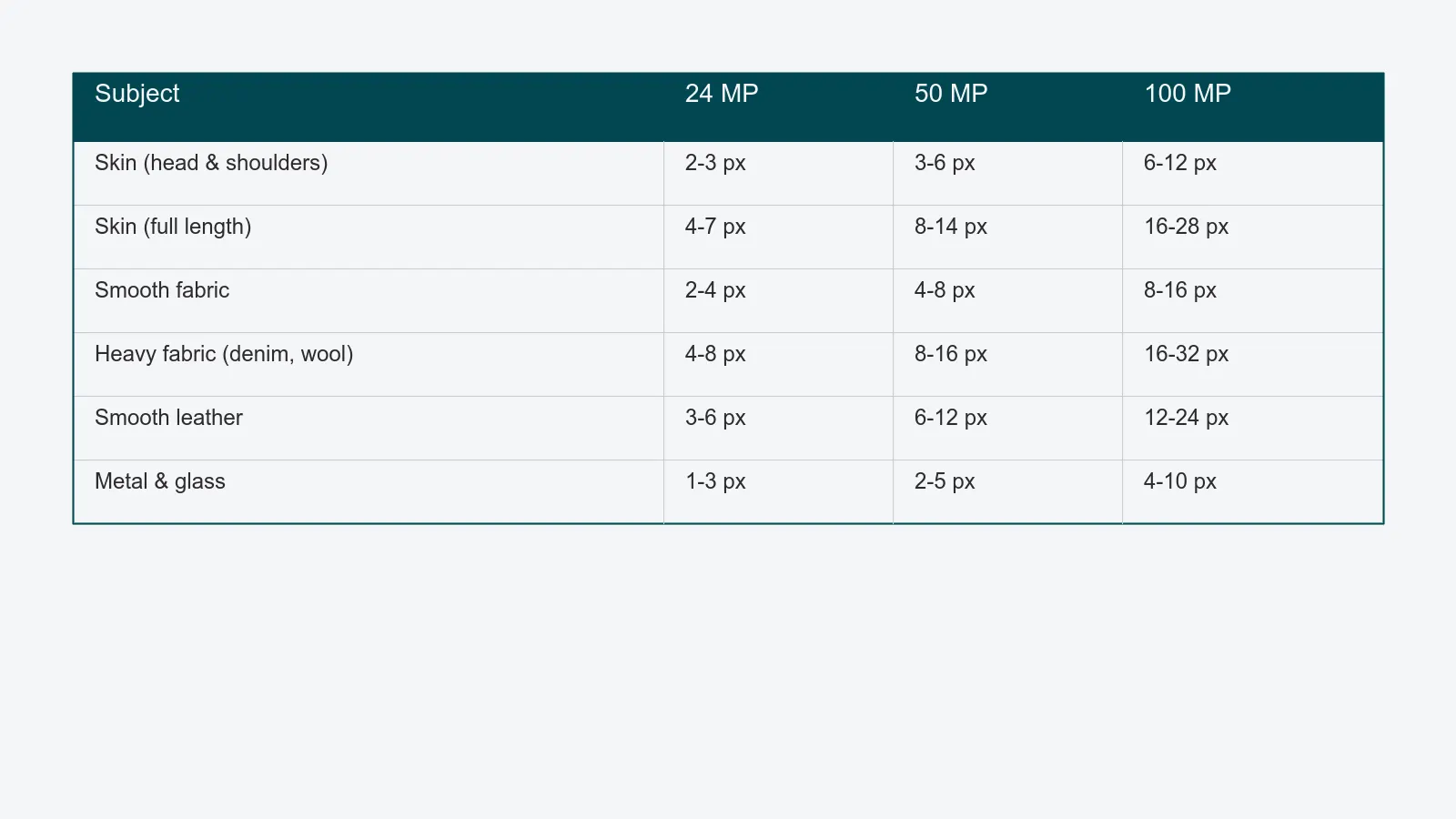
In production that translates to ranges, not single values. For a 50 MP full-frame portrait at native resolution:
- Skin - 3 to 6 px for tight head-and-shoulders, 5 to 10 px for half-length, 8 to 14 px for full-length where skin is small in frame.
- Smooth fabric (silk, satin, fine cotton) - 4 to 8 px. Keep the weave on the high-freq layer.
- Heavy fabric (denim, canvas, structured wool) - 8 to 16 px. The weave is the texture; the radius must be small enough to preserve it.
- Leather (smooth) - 6 to 12 px. The grain is the texture.
- Metal and glass - 2 to 5 px. Specular detail is the texture and is unforgiving of leakage.
Halve those numbers for 24 MP capture, scale up for 100 MP. The rule is the visual one, not the number.
8-bit versus 16-bit, and why the math matters for skin
Frequency separation in 8-bit is a quiet quality killer in ecommerce skin retouching. The reason is in the math.
The 8-bit "subtract" method, on a duplicated layer, does this: high-freq layer = (original − blurred) × 2 + 128, clipped to 0–255. The subtraction discards a sign bit. The scale factor of 2 amplifies any rounding. The result is that subtle areas - the soft falloff on a forehead, the matte cheek under a beauty light - end up encoded in roughly 5 to 7 bits of useful range, with the rest banding to neighbors. Push a curve on the low-freq layer afterward, and the bands become visible.
The 16-bit "add and invert" method (Apply Image, blending Add, source = blurred, Invert checked, scale 2, offset 0) keeps the math in a wide enough integer space that rounding stays below visible thresholds. Skin gradients survive aggressive tone work without breaking up.
Two operational rules follow:
- All capture intended for retouching is 16-bit from raw. Promoting 8-bit JPGs to 16-bit before FS does not recover the precision the JPG already discarded.
- The FS action runs in 16-bit, period. If a retoucher's working file is 8-bit, the action should refuse to run, not silently downgrade.
For the wider color-precision picture across the whole pipeline - capture, working space, soft-proofing, distribution - see the color-managed retouching pipeline guide. Frequency separation is one technique inside that pipeline; the pipeline decides whether the technique can do its job.
Apply Image versus Gaussian blur method
There are two ways to build the high-freq layer. Both produce mathematically equivalent results when set up correctly. The difference is workflow, not output.
Gaussian blur method. Duplicate the layer twice. Blur the bottom copy. On the top copy, apply Image > Apply Image with the blurred layer as source, blending Subtract (8-bit) or Add + Invert (16-bit). Set the top layer's blend mode to Linear Light. Faster to teach, slower to run on large files, harder to non-destructively change the radius later.
Apply Image method on a single duplicate. Duplicate the layer once. Run a single Apply Image command that references the layer below at a Gaussian-blurred state - but Photoshop cannot blur on the fly inside Apply Image, so in practice the "Apply Image method" still requires a blurred reference. The real workflow distinction in production is whether the radius is baked into the action or parameterized.
The recipe that works at scale is parameterized: an action that prompts the retoucher for a radius once at the start of a job, applies the same radius to every frame in the queue, and labels the layers consistently. Bake the radius into a different action per material - FS-skin-portrait, FS-skin-full, FS-fabric-smooth, FS-fabric-heavy, FS-leather, FS-metal - and the radius decision is a one-click choice instead of a per-image judgment call. The shared retouching action library is where these recipes live for the team.
When not to use frequency separation
A senior retoucher's most useful skill is knowing when to leave the technique on the shelf.
- Editorial skin where natural texture is the point. Magazine covers and campaign portraits where pores, fine lines, and tonal complexity carry the image. FS pulled too aggressively here is the source of the "waxy editorial face" complaint that has dogged commercial retouching for fifteen years.
- Low-volume hero shots. A single image that will be enlarged to 3 metres on a retail wall does not save time with FS - it rewards manual dodge and burn over a hundred small areas. Use FS for clean-up of obvious blemishes, then put it away.
- Knits and weaves where texture coherence carries quality. Cable knits, raffia, bouclé, denim slubs, hand-loomed wool. The texture is the product. FS treats the texture as something to be cloned and moved around, which breaks the directional logic of the weave. Buyers can tell, even if they cannot articulate why.
- Already-clean material. Smooth ecommerce packshots of plastic, ceramic, or polished metal that came off the set well do not need FS at all. A spot-heal pass plus a curves layer is faster and lower-risk.
The decision rule for the production lead: FS is a tool for evening tone over existing good texture, not for rescuing bad texture and not for replacing craft.
Batch limits at 200+ assets a day
Frequency separation does not batch in the way packshot color correction batches. The high-freq cleanup is per-image manual work - clone, heal, paint, blur - that an action cannot automate. What scales is the setup, not the cleanup.
What works in a 200-plus-asset-a-day queue:
- Pre-built FS layers from the action library, applied automatically when a file enters the retouching state. The retoucher opens the file with the layers already there.
- Radius preset by material, driven from the shot list metadata (skin, fabric type, leather, metal) rather than chosen per file. A photographer's shot list that already encodes material is a retouching speed multiplier.
- Time budgets per asset class, posted in the queue. Ecommerce skin: 4 to 7 minutes. Smooth-fabric packshot: 2 to 4 minutes. Heavy-fabric model shot: 6 to 10 minutes. If a retoucher is over budget, the file flags for the lead - almost always because FS is being asked to do work it should not do.
- A QA loop that catches FS smells before they go to the client, not after. The content production QA process is where this loop sits - visual review against agreed standards, not a thumbs-up in email.
Smell tests for over-retouched skin
When the lead spot-checks a retoucher's work, four signs say the FS pass went too far:
- Waxy. The skin reads as plastic. Pores are present in the high-freq layer but the low-freq layer has been smoothed so aggressively that the contrast between micro-shadows and lit skin is gone. Fix: less Gaussian on the low-freq, less paint on the low-freq, or a lower radius so micro-shadows stay where they belong.
- Banded. Smooth gradients on cheeks or foreheads show step transitions. Almost always an 8-bit FS pass that should have been 16-bit, sometimes amplified by an over-aggressive curves layer downstream.
- Halo'd. Edges along the jaw, hairline, or eyelid show a thin bright or dark rim. The radius was too large; color information leaked into the high-freq layer and got dodge-burned along with the texture.
- Texture-cloned. Patches of skin show repeating pore patterns where a clone stamp on the high-freq layer sampled the same area twice. Fix: smaller brush, more sample points, and rotate or mirror the clone source.
For a Editor / Retoucher facing these in a queue, the routine is the same - radius down, bit depth up, less paint on low-freq, escalate to the lead if the file still smells. The editor-retoucher role guide maps this routine into the larger production flow.
A short closer
Frequency separation is not a setting. It is a set of decisions - radius, bit depth, method, when to skip it, when to escalate - that a production team has to make consistently across thousands of files a week. The technique itself is fifteen years old. What changes at scale is the operational framing: actions instead of recipes, presets instead of judgment calls, queue review instead of single-image craft, and smell tests that catch drift before the buyer does.
If your retouching queue is producing ten different versions of the same campaign's skin and your QA loop only catches it after the fact, the fix is not better tutorials. It is shared actions, shared standards, and a review process where the lead can see and correct work in flight. We help studios put that in place.